Silo — Zero Trust Networks
Silo is the core networking product in Camouflage. Create and manage encrypted mesh networks with zero trust security — every connection is authenticated, every node gets a fixed identity, and ACLs control exactly who can talk to whom. Supports any configuration of nodes and networks with quantum-safe encryption.
Features
- Encrypted tunnels — All traffic between nodes is encrypted end-to-end
- Fixed IP assignment — Nodes receive persistent IPs that survive reconnections
- Connection profiles — Import
.camouflagefiles to connect with one click - Route all traffic — Optionally route all device traffic through the VPN
- Multi-network — Connect to different networks as needed
Getting Started
- Open Camouflage Hub
- Click the Silo card (or use the Connect VPN quick action)
- If you have a saved connection, click Connect
- To add a new connection, import a
.camouflageprofile file
Networks
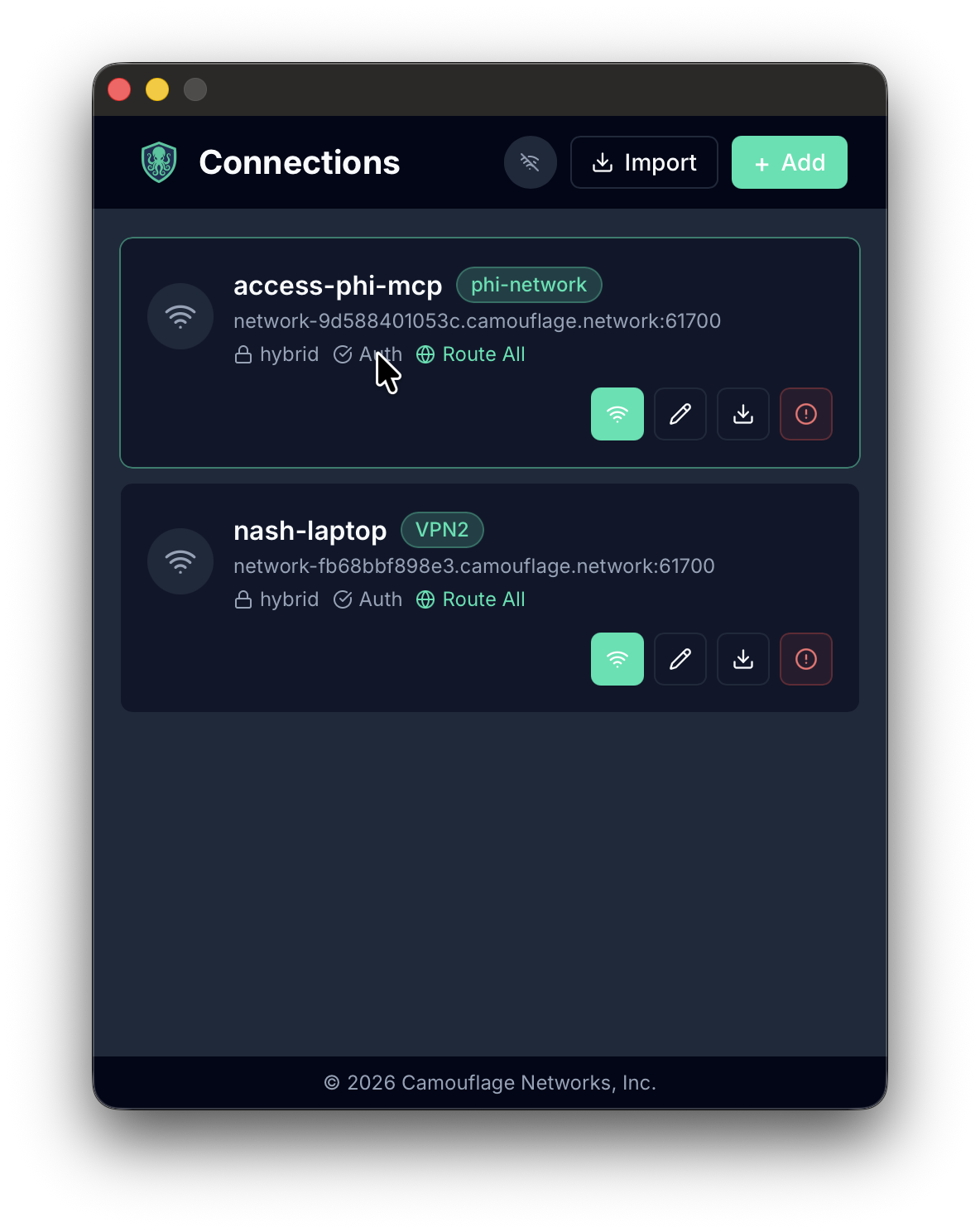
The Silo Connections view lists all your saved networks. Each network card shows:
- Node name — Your device's identity on the network
- Network tag — The network name (e.g. VPN2, pbi-network)
- Server address — The Silo relay server endpoint
- Mode indicators — Connection mode (hybrid), authentication status (Auth), and whether all traffic is routed (Route All)
Each network has action buttons to connect, edit, download the profile, or remove the connection.
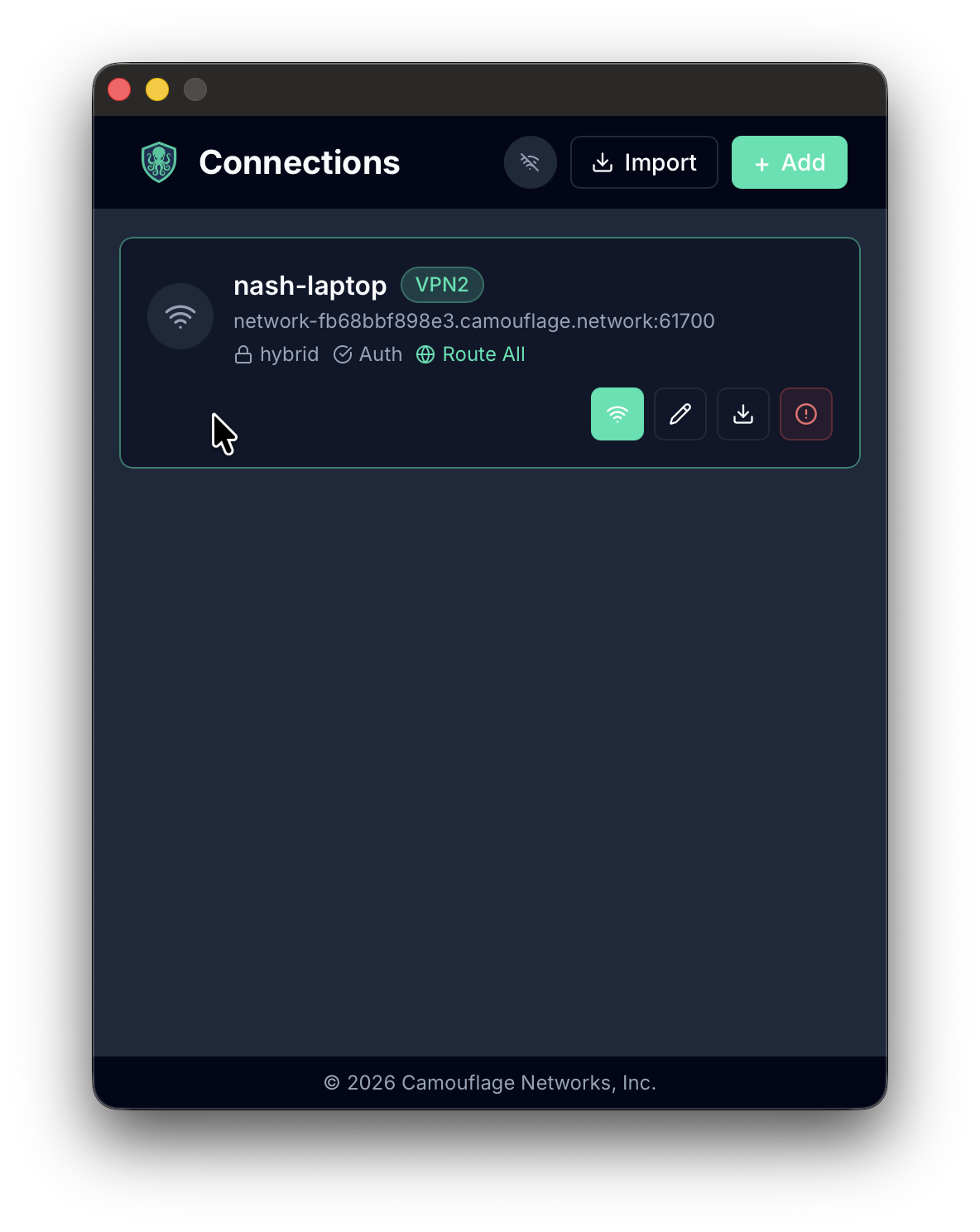
To connect, click the green wifi button on the network card. The button initiates the encrypted tunnel to the Silo relay server.
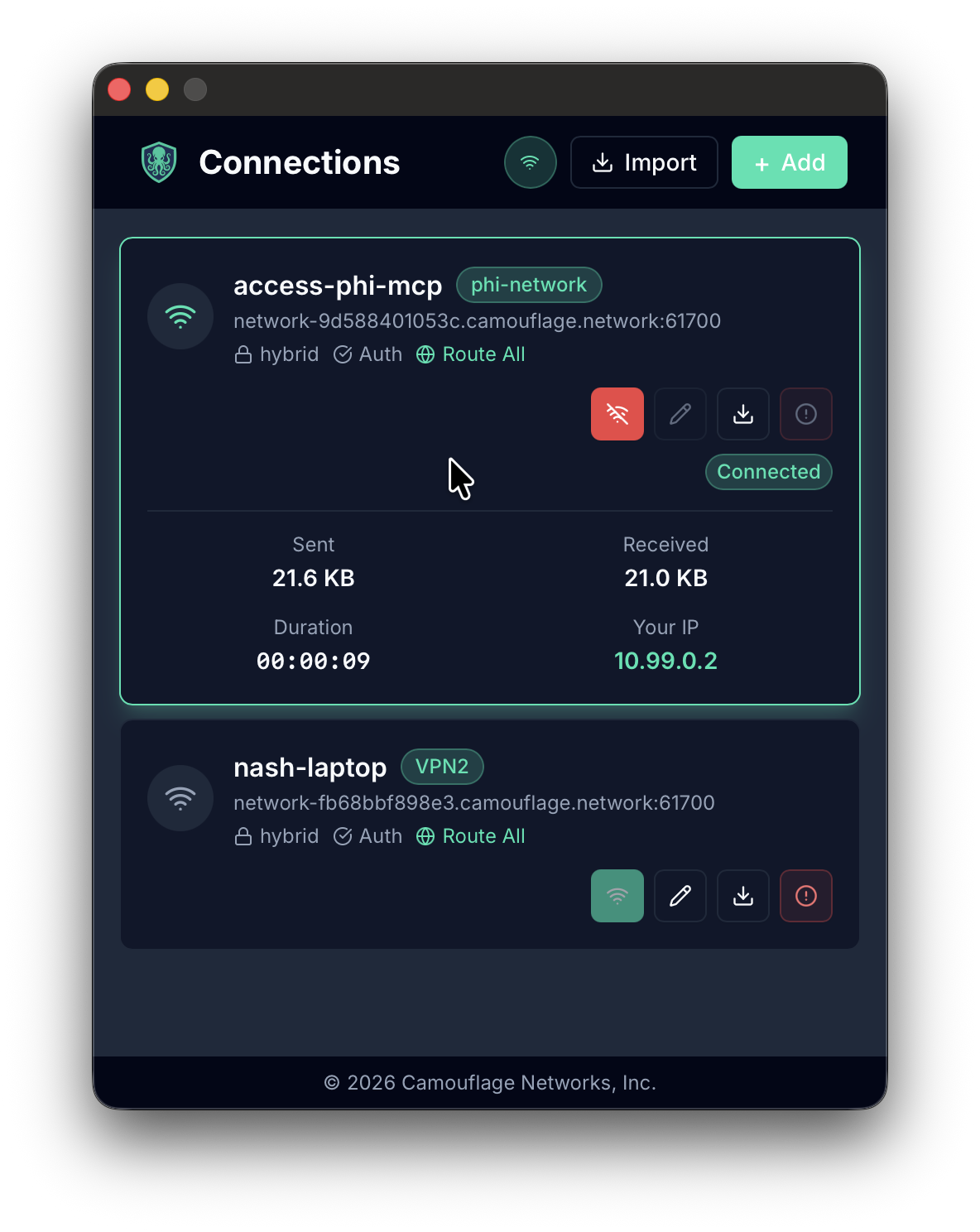
Active Connection
When connected to a network, Silo displays real-time connection statistics:
- Sent / Received — Data transferred over the tunnel
- Duration — How long the connection has been active
- Your IP — The fixed IP assigned to your node on the network (e.g. 10.99.0.2)
A green Connected badge confirms the tunnel is active. To disconnect, click the red wifi button with a slash — this tears down the tunnel immediately. You can have multiple networks saved and switch between them.
Importing Networks
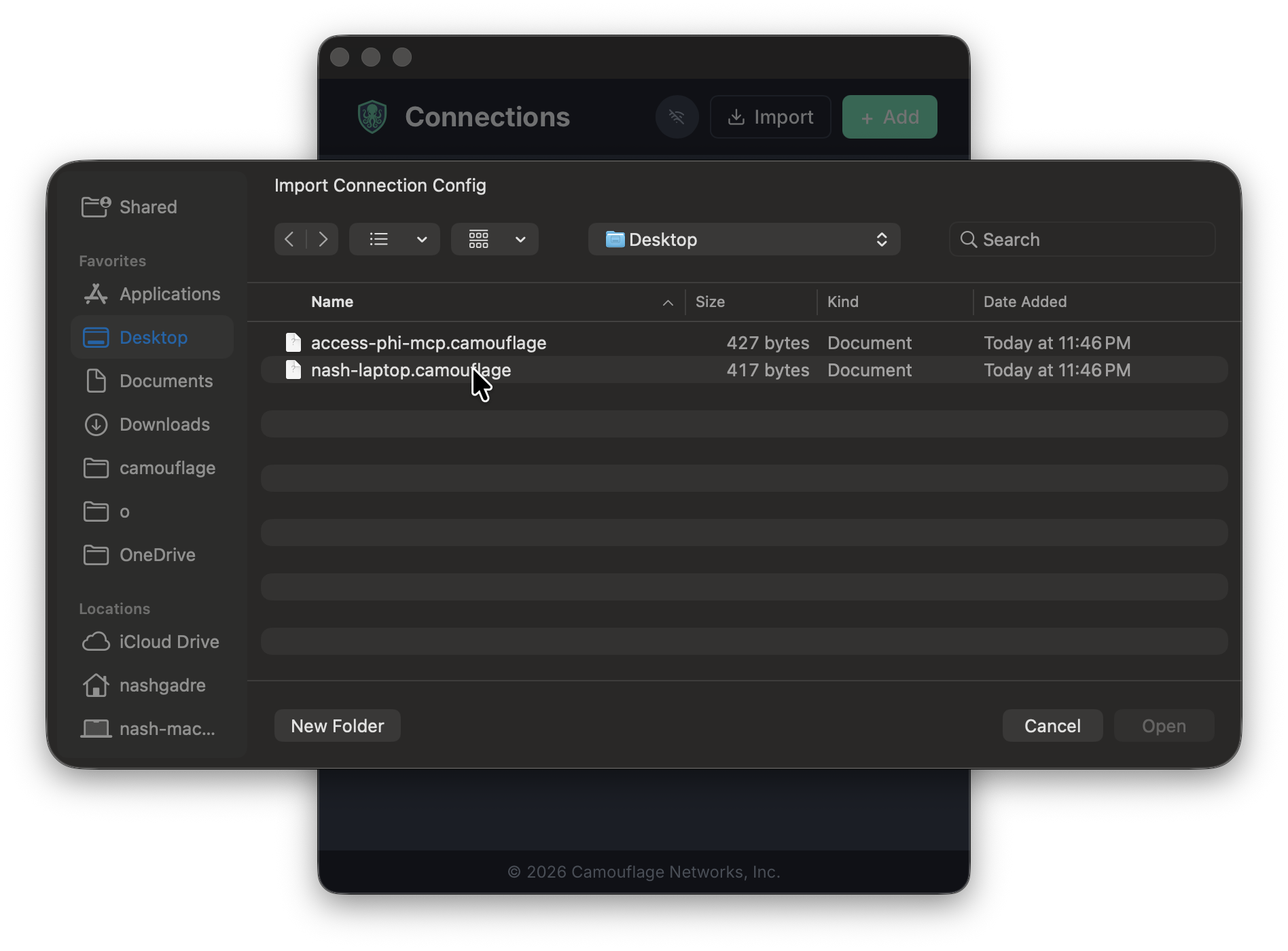
To join a new network, import a .camouflage connection profile:
- Click Import in the top bar of the Connections view
- Select one or more
.camouflagefiles from the file picker - The network will appear in your connections list, ready to connect
You can also import profiles via:
- Tray menu — "Import Network(s) from a File"
- CLI —
camouflage-client connect --profile file.camouflage
Connection Profiles
Connection profiles (.camouflage files) contain everything needed to connect to a network:
- Server address and port
- Authentication key
- Network name
Hub Status
On the Hub, Silo shows:
- Connected (green) — Active VPN connection with the network name
- Disconnected (grey) — No active connection
Authentication
Silo requires authentication. If you are not signed in, clicking Silo will redirect you to the login page. Sign in with Google or Microsoft SSO to access your networks.