Camouflage Hub App
Camouflage Hub App is the unified desktop launcher for all Camouflage products. It provides a single entry point to access your entire network toolkit.
Overview
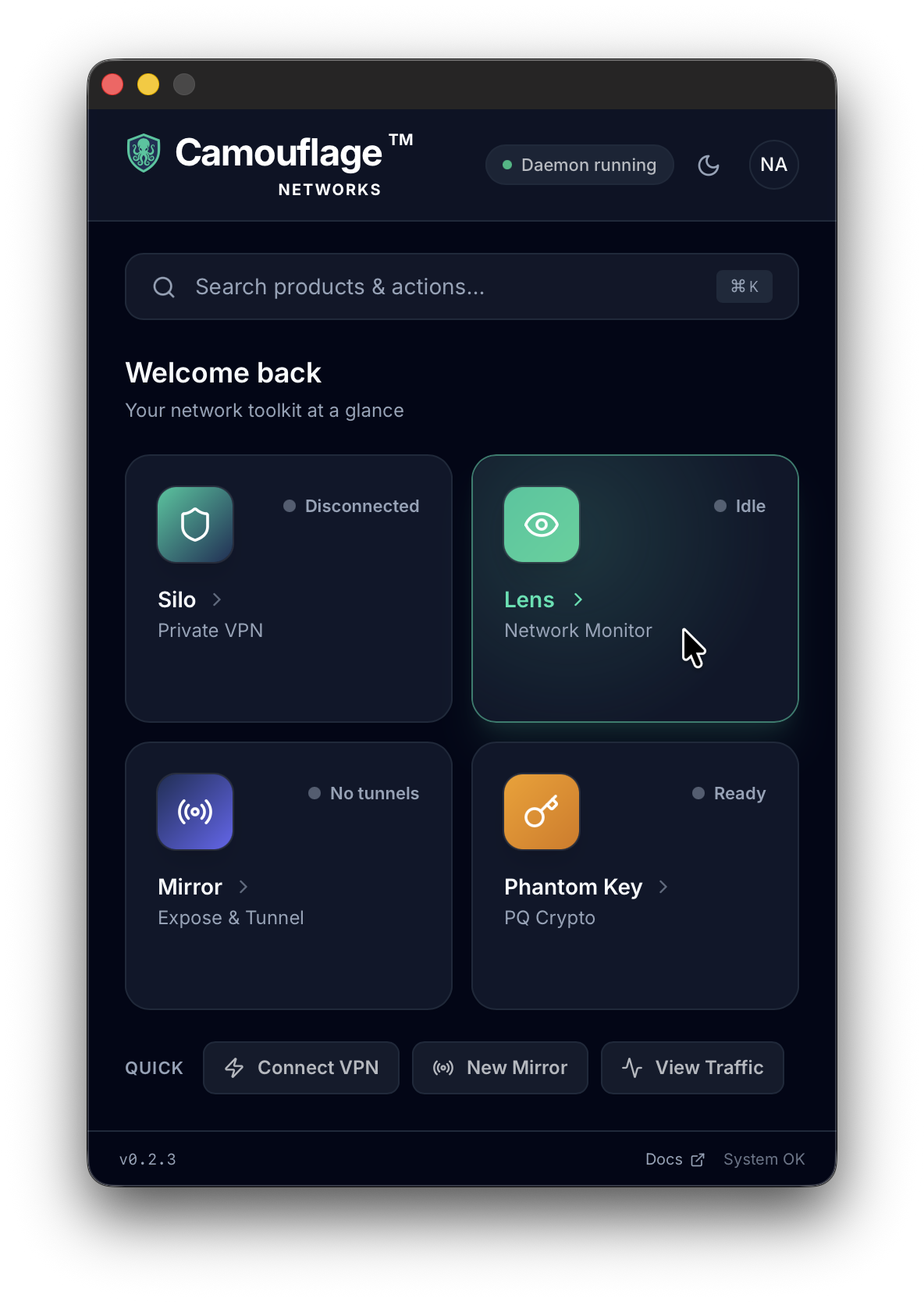
The Hub is the main window you see when you open Camouflage. From here you can launch any product, check the status of your services, and perform quick actions — all at a glance.
Products
| Product | Description | Status Indicators |
|---|---|---|
| Silo | Zero Trust Networks | Connected / Disconnected |
| Lens | Network Monitor | Monitoring / Idle |
| Mirror | Expose & Tunnel | Active tunnel count / No tunnels |
| Phantom Key | Post-Quantum Crypto | Ready |
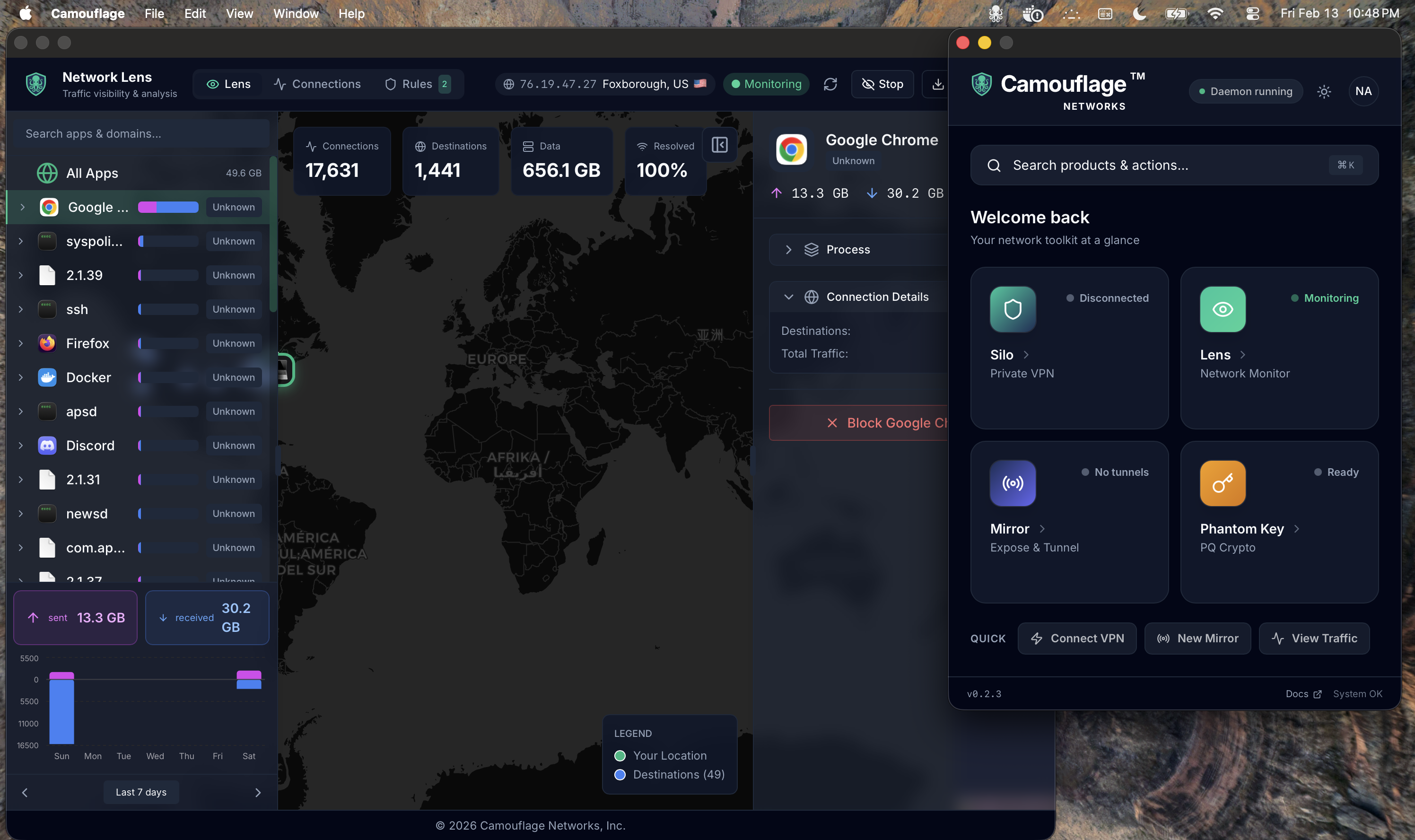
Each product opens in its own dedicated window, so you can work with multiple tools side by side.
Navigation
Command Palette
Press Cmd+K (macOS) or Ctrl+K (Windows/Linux) to open the command palette. Search for products and actions by name.
Quick Actions
The bottom of the Hub provides one-click shortcuts for common tasks:
- Connect VPN — Launch Silo and connect
- New Mirror — Open Mirror to expose a local port
- View Traffic — Open Lens to monitor network activity
System Tray
Right-click the Camouflage tray icon to access all products and actions without opening the Hub window.
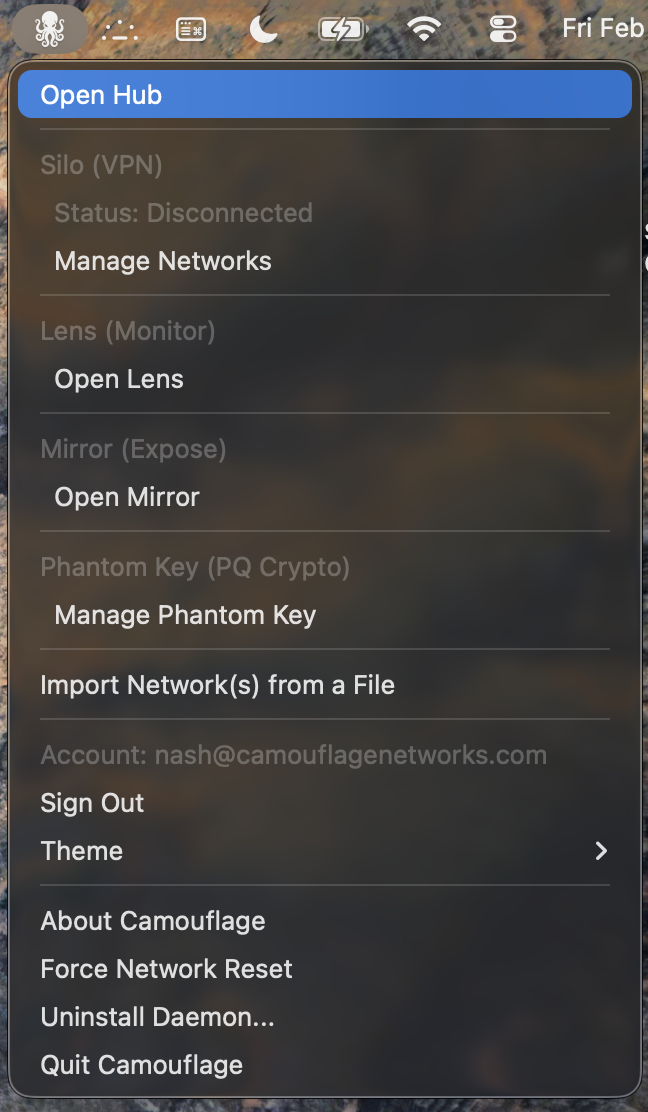
The tray menu shows:
- Open Hub — Show the main Hub window
- Per-product status and quick-open shortcuts
- Import Network(s) from a File — Import
.camouflageconnection profiles - Account management (Sign In / Sign Out)
- Theme toggle (Dark / Light / System)
- Daemon management (About, Force Reset, Uninstall)
Status Bar
The Hub header displays:
- Daemon status — Whether the system daemon is running
- Theme toggle — Switch between dark, light, and system themes
- User profile — Account info and sign-out (when authenticated)
The footer shows the app version, a link to these docs, and overall system health.